Troubleshooting guide
Pi-hole Whitelist Domain Not Working: Fix an Allow Entry That Still Blocks
Category: DNS Filtering
You added a domain to Pi-hole’s allow list, but it is still being blocked on a home LAN where your router hands out DNS.
Confirm the entry and its type
Open your Pi-hole admin page and go to Domains. Find the entry and check that it is listed under Allow, not Block. Confirm the exact domain matches what the client requests: an entry for example.com does not automatically allow www.example.com or a subdomain. If you need the whole domain, add a regex allow entry such as (^|\.)example\.com$. Save and reload the page to confirm the entry persisted.
Check which list is winning
Go to Query Log and search the blocked domain. Look at the status and the list that matched. If a blocklist entry or regex appears, the allow entry may not override it depending on your Pi-hole version and regex order. Remove or disable the conflicting block rule, then retry. This is the most common reason for pi-hole whitelist domain not working.
Rule out client bypass
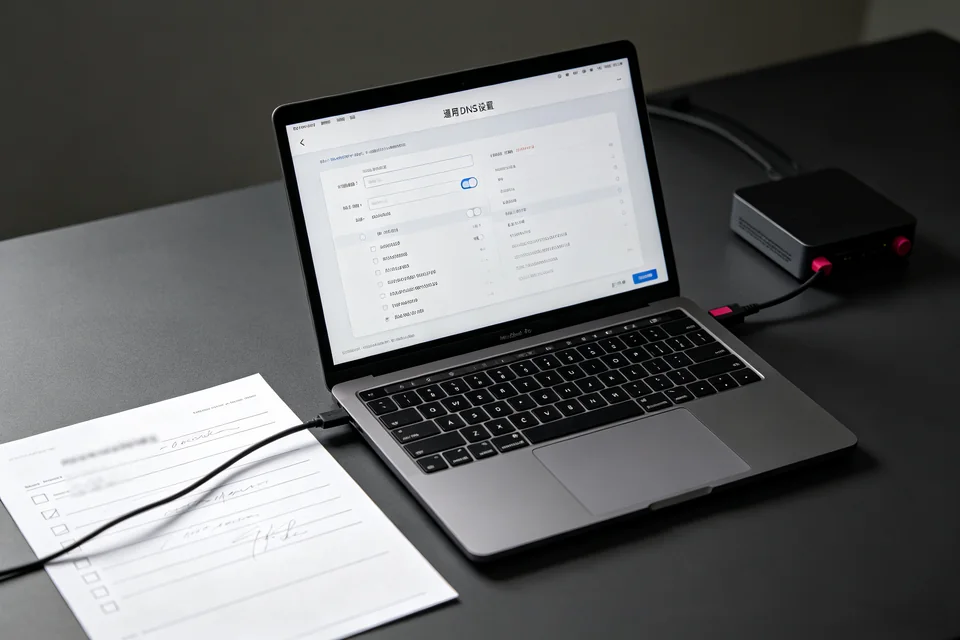
On the affected device, confirm it is actually using Pi-hole for DNS. If the router hands out its own DNS or a secondary DNS, the device may never query Pi-hole. Check the device’s DNS settings or your router’s DHCP DNS handout and set Pi-hole as the only DNS server.
Verification test
Flush the device DNS cache, then run nslookup thedomain.com from that device. In Query Log, the request should appear as allowed, and the page should load. If it still shows blocked, note the exact list name.
Rollback note
If a new regex allow rule causes unexpected results, delete it and restore the previous entry before further testing. If the checks above do not resolve it,
Ask for help with your Query Log status and list name.