Troubleshooting guide
Router DNS Settings Override Pi-hole: Fix DHCP Handout
Category: DNS Filtering
You set Pi-hole as your DNS server, but every device on the LAN still receives the router’s own DNS address, so filtering never applies.
Confirm what the router is actually handing out
Before changing anything, check the client side. On a computer connected to the LAN, run the command that shows the assigned DNS server (for example nslookup or your OS network details). If the listed DNS address is the router’s LAN IP rather than the Pi-hole address, the DHCP handout is wrong, not Pi-hole itself.
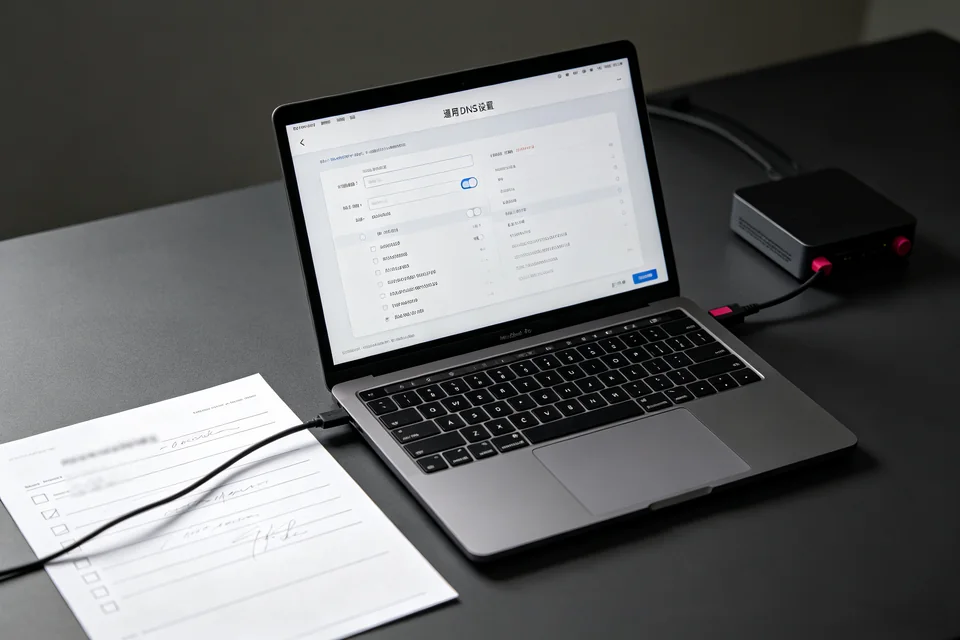
Next, open the router’s DHCP settings page. Two fields matter: the primary/secondary DNS servers handed to clients, and any separate LAN DNS or DNS override option. Many routers ignore the DHCP DNS field when their own DNS relay is enabled. Disable that relay or override, then enter only the Pi-hole address in the primary DNS field and leave the secondary empty.
Check IPv6 router advertisements
If IPv6 is active, the router may advertise its own DNS through router advertisements even when DHCPv4 is correct. Set the advertised IPv6 DNS to the Pi-hole address or disable IPv6 DNS advertisement until the IPv4 path is confirmed working.
Verification test
Renew the DHCP lease on one client (disconnect and reconnect, or release/renew), then re-run the DNS lookup check. Success means the client now lists the Pi-hole address as its DNS server and queries appear in the Pi-hole query log. If the router address returns, the override setting was not saved or a second DNS source is still active.
Rollback note
If clients lose internet access after the change, temporarily restore the router’s previous DNS setting so the household stays online, then retest with a single device before applying it network-wide. For guided diagnosis of your specific pi-hole router dns settings,