Troubleshooting guide
Router DNS Settings Override Pi-hole: Fix the DHCP Handout
Category: DNS Filtering
Your router keeps sending its own DNS address to clients instead of the Pi-hole IP, so devices bypass filtering. Here is how to isolate and correct that handoff.
Confirm what the router is actually handing out
On a client, check the DNS server it received. On Windows, run ipconfig /all and read the DNS Servers line. On macOS, open System Settings > Network > Wi-Fi > Details > DNS. On Linux, run nmcli dev show | grep DNS. If the listed server is the router’s LAN IP (for example 192.168.1.1) rather than the Pi-hole address, the DHCP handout is still wrong. If it shows the Pi-hole IP, the problem is elsewhere and you should stop here.
Check the router’s DHCP DNS field
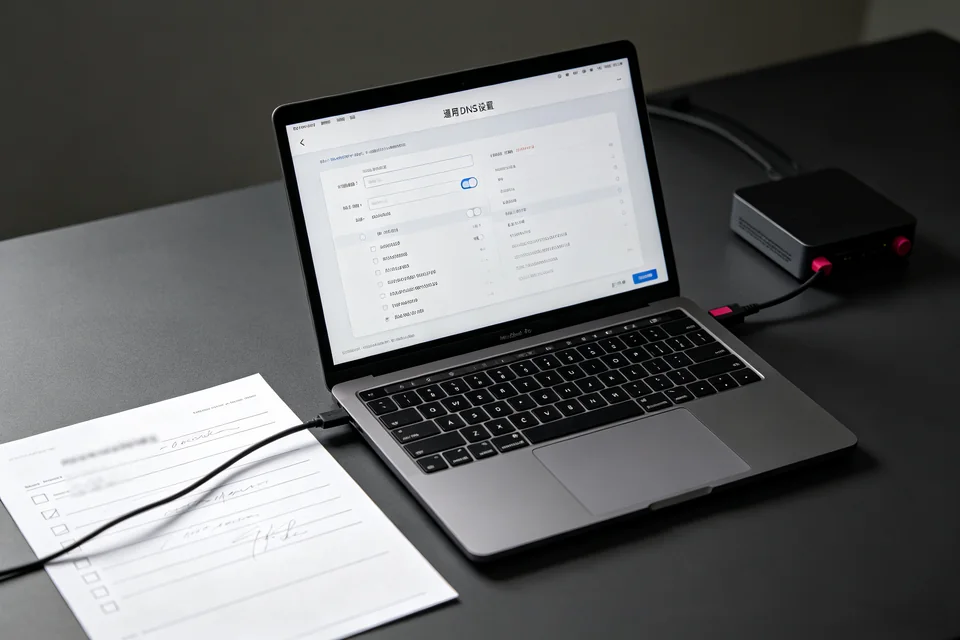
Log in to the router and open the LAN or DHCP server page. Find the DNS server field. It must contain only the Pi-hole’s static LAN IP, with no secondary DNS such as 8.8.8.8 or the router’s own address. A secondary entry lets clients fall back and bypass Pi-hole. Save and apply. If the router has a separate WAN DNS page, leave that alone; it does not control what clients receive.
Verify the fix
Renew the lease on a client: ipconfig /release then ipconfig /renew on Windows, or toggle Wi-Fi off and on. Re-run the DNS check. The DNS Servers line should now show only the Pi-hole IP. Then browse to a known ad domain and confirm it is blocked.
Rollback if clients lose connectivity
If clients cannot resolve after the change, set the router DNS back to its previous value, renew leases, and confirm internet access returns before retrying. For a guided review of your pi-hole router dns setting,