Troubleshooting guide
Router DNS Override: Stop Your Router From Handing Out Its Own DNS Instead of Pi-hole
Category: DNS Filtering
Your router is still advertising its own DNS address to clients, so devices keep bypassing Pi-hole even though the Pi-hole itself looks healthy.
Check the DHCP DNS Handout
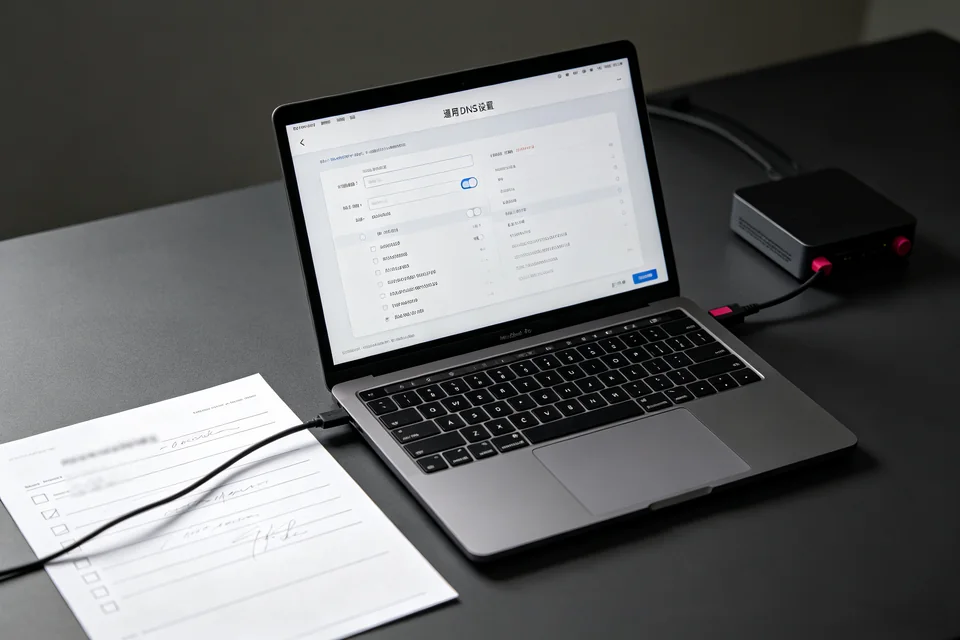
Log in to your router and open the DHCP or LAN settings page. Find the DNS server field that is sent to clients. If it shows the router’s LAN IP, auto, or your ISP’s resolver, that is the cause. Change it to the Pi-hole’s static LAN IP only, then save and reboot the router. After the reboot, reconnect one client and check its DNS server. It should list only the Pi-hole address. If it still shows the router, the router may be forcing its own DNS; look for a setting such as “Use router as DNS” or “DNS proxy” and disable it.
Confirm the pi-hole router dns setting Is Not Overridden
On the Pi-hole, open Settings, then DNS. Note the upstream servers. On the router, make sure no secondary DNS entry points elsewhere. A secondary entry lets clients fall back to a non-Pi-hole resolver. Set the secondary to the Pi-hole address again or leave it blank if the router allows it.
Verification Test
From a client, run an nslookup for a known blocked domain. The reply should come from the Pi-hole IP and return the Pi-hole block address. Then open the Pi-hole query log and confirm that client’s query appears. If the query is missing, the client is still using another DNS server.
Rollback Note
If the router rejects the Pi-hole address or clients lose internet access, restore the previous DNS entry, reboot the router, and confirm normal browsing before retrying. For guided diagnosis,