Troubleshooting guide
Pi-hole DHCP DNS Conflict: One Device Still Bypasses Pi-hole
Category: DNS Filtering
Understand the conflict
You have Pi-hole on a home LAN with router-provided DNS, and one device still uses another DNS server and shows no Pi-hole queries. This is a pi-hole dhcp dns conflict pattern: the router’s DHCP server is handing out a DNS address that is not Pi-hole, so the device never asks Pi-hole.
Check the DHCP lease and DNS handout
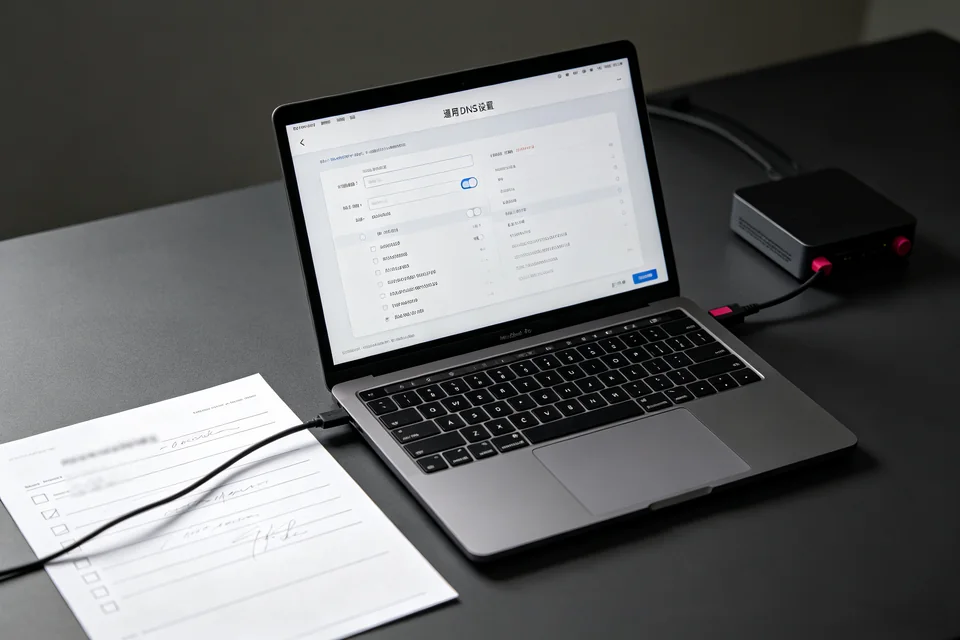
On the affected device, open its network settings and find the DNS server it received. If it shows the router’s LAN IP or a public resolver instead of the Pi-hole IP, the DHCP handout is wrong. Next, log in to the router and inspect the DHCP DNS setting. If it lists the router or an ISP resolver, that is the source. Change the DHCP DNS option to the Pi-hole IP only, then save and renew the lease on the device. If the router has no DNS handout field, disable its DHCP server and enable Pi-hole DHCP, but only after confirming the Pi-hole DHCP range does not overlap the router’s range.
Interpret the result
After renewal, check the device’s DNS server again. If it now shows the Pi-hole IP, the handout is fixed. If it still shows the old address, the device may have a static DNS entry or a saved profile; clear it or set it to automatic. Also confirm the Pi-hole query log shows a request from that device’s IP within a minute.
Verification test
From the device, visit a known ad domain and then open the Pi-hole query log. A matching entry confirms traffic reaches Pi-hole. If no entry appears, the device is still bypassing Pi-hole.
Rollback note
If you changed DHCP servers and devices lose connectivity, re-enable the router DHCP server and restore its previous DNS value, then renew leases. For guided help,