Troubleshooting guide
Pi-hole Device Not Using DNS: Fix One Device That Still Bypasses Pi-hole
Category: DNS Filtering
One device on your home LAN still resolves through another DNS server and never appears in the Pi-hole query log, even though the rest of the network is fine.
Confirm the bypass before changing anything
On the affected device, open its network settings and note the DNS server it actually uses. If it shows your router’s LAN address, that is expected when the router hands out itself as DNS; the router should then forward to Pi-hole. If it shows a public resolver such as 8.8.8.8 or 1.1.1.1, the device is bypassing Pi-hole directly. Also check whether the device uses a private DNS or secure DNS setting, a static IP with manual DNS, or a VPN, because each of these can override DHCP.
Correct the device and router handoff
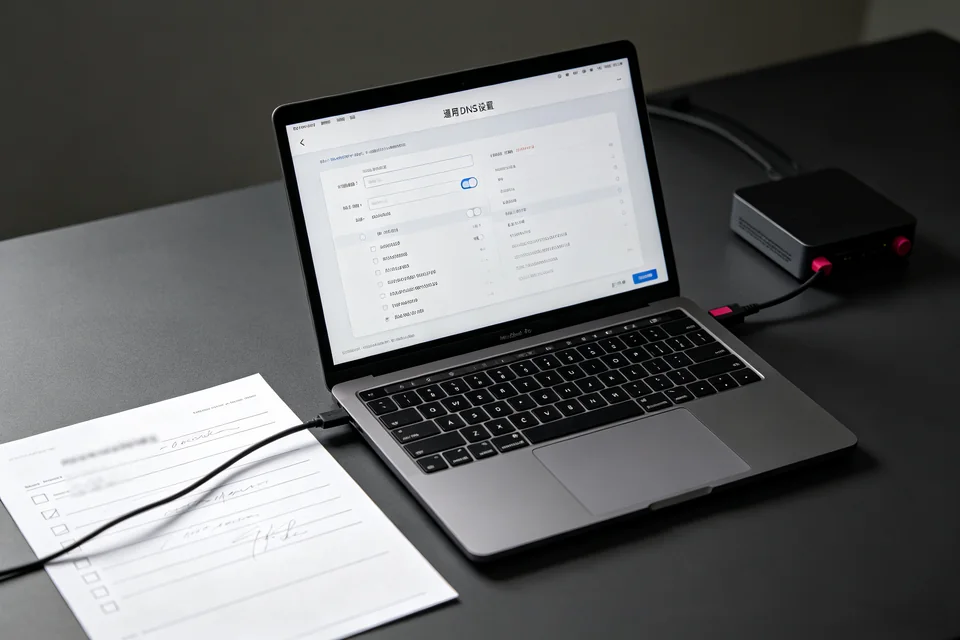
Set the device back to automatic DHCP and disable private or secure DNS for the test. On the router, confirm DHCP advertises Pi-hole as the only DNS server and that no secondary public DNS is listed. If the device keeps a manual DNS entry, clear it and renew its lease. This is the usual cause of a pi-hole device not using dns even when Pi-hole itself is healthy.
Verify the result
Flush the device’s DNS cache, reconnect it to Wi-Fi, then load a few new domains. In the Pi-hole query log, filter by the device’s IP or hostname. You should see fresh queries within a minute. If the log stays empty while the device browses normally, the bypass is still active.
Rollback note
If you changed router DHCP settings, restore the previous values before stopping, and re-enable any private DNS you disabled once testing is complete. If queries still do not appear,
Ask for help with the device’s DNS settings and a query-log screenshot.