Troubleshooting guide
Pi-hole Device Not Using DNS: One Device Still Bypasses Pi-hole
Category: DNS Filtering
pi-hole device not using dns. ## Confirm the device’s actual DNS server
You set Pi-hole as your LAN DNS, but one device still resolves through another server and never appears in Pi-hole queries. Start by checking what DNS server that device is actually using. On Windows, run ipconfig /all and read the DNS Servers line for the active adapter. On macOS, use scutil --dns and look at the resolver entries. On Android or iOS, open the Wi-Fi details and note the DNS field. If the listed server is not your Pi-hole IP, the device is bypassing Pi-hole. If it shows your Pi-hole IP but queries still do not appear, the device may be using encrypted DNS or a private DNS setting.
Check router and device overrides
Next, confirm the router is not handing out a second DNS server. Log into the router and inspect the DHCP DNS settings; if both Pi-hole and another server are listed, some devices will pick the other one. Also check the device for a manually set DNS, a private DNS or secure DNS toggle, or a VPN profile. Disable any manual DNS and set the device to obtain DNS automatically. If the device uses a static IP, update its DNS entry to the Pi-hole address. After each change, reconnect the device to Wi-Fi so it requests a fresh lease.
Verification test
On the device, visit a site you have not opened recently, then open the Pi-hole Query Log and filter by that device’s IP. A new query from the device confirms it now uses Pi-hole. If no query appears, the device is still bypassing Pi-hole; revisit the private DNS and VPN settings.
Rollback note
If a change breaks connectivity, restore the previous DNS or private DNS setting and reconnect. For persistent cases,
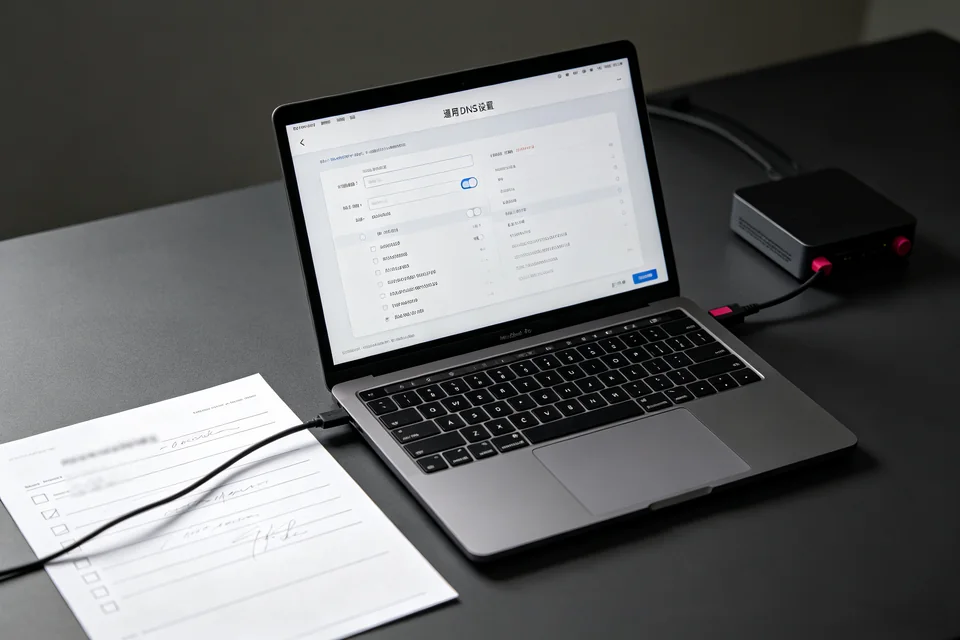
A device that bypasses pi-hole often hides a second DNS entry or a private DNS toggle, so check both before changing anything else.